Creating Command Aliases on Cisco Router


Router#configure terminal
Enter configuration commands, one per line. End with CNTL/Z.
Router(config) #alias exec rt show ip route
Router(config) #alias exec on show ip ospf neighbor
Router(config) #end
Router#

Router#show aliases
Exec mode aliases:
h help
lo logout
p ping
r resume
s show
u undebug
un undebug
w where
rt show ip route
on show ip ospf neighbor
Router#

Redhat (centos) network interface configuration


Redhat Linux network interface names start with ethX. First Ethernet network interface name is eth0, second is eth1 and so on.
Login as a root user, use su - command:
$ su -
To list or display more information about network interface type command:
# ifconfig | less
To assign an IP address type following command:
# ifconfig eth0 192.168.1.1 up
To take down network interface type following command:
# ifconfig eth0 down
To configure network card using GUI tool type command:
# redhat-config-network
You can also type command setup and select network configuration from menu:
# setup
If you wish to configure network interface manually then you need to edit files stored in /etc/sysconfig/network-scripts/ directory. For example here is my sample /etc/sysconfig/network-scripts/ifcfg-eth0 file for eth0 network interface:
DEVICE=eth0
BOOTPROTO=static
BROADCAST=192.168.1.255
HWADDR=00:0F:EA:91:04:07
IPADDR=192.168.1.111
NETMASK=255.255.255.0
NETWORK=192.168.1.0
ONBOOT=yes
TYPE=Ethernet

Top 5 Anti virus for Ubuntu


Generally Ubuntu Linux is hardly effected by virus and the reason is its structure and strong community support, any loopholes are worked immediately. For every new virus, its solution is out within two hours thus preventing it to do any further damage. Linux antivirus are also effective against the Windows virus and they are removed if they enter your systems through external hard drive, internet etc.

Also see Top 10 FAQ about Linux and FOSS.  

Top 5 Ubuntu Linux antivirus I recommend are:

1. ClamAV Antivirus 
ClamAV is the most popular open source anti-virus software and it is available for both Ubuntu and Kubuntu. Its GUI interface is called Clamtk.
It can be install from the software center or in terminal type
$sudo apt-get install clamav clamtk


2. Free Avast Linux Home Edition
This is Free version of popular proprietary Antivirus Avast. It requires online  registration for 1 year use. It is not available for commercial use.
Download Avast Linux Home Edition and register here. Once you install it and run for the first time, you will be asked for the key.

3. AVG Antivirus 
This is another free antivirus available for Ubuntu. Download it hereAVG has over 110 million users. Once you install it, you need to start AVG with super user privileges. To do so open the terminal and type
$sudo avggui

4. F-PROT Antivirus 
It is available for all Linux workstations and has to installed from from .tar file. Download F-PROT.To install follow these steps:
     -> Extract the tar file.
     -> Open terminal and change drive to the extracted folder.
     -> Type sudo ./install and press Y to continue.
     -> Press Y for all other prompts and Enter.

5. BitDefender

It is another proprietary antivirus software available for Ubuntu for non-commercial use.
You have to add the repository.
System - Administration - Software Sources, click on the 'Other Software' (previously 'Third Party Software') tab. Now click on 'Add' and enter
deb http://download.bitdefender.com/repos/deb/ bitdefender non-free  

Close and press Reload button.In terminal paste  the following command.
$wget http://download.bitdefender.com/repos/deb/bd.key.asc 
$sudo apt-key add bd.key.asc
  
To install the GUI type the following command in terminal.
$sudo apt-get install bitdefender-scanner-gui

Now access it from Applications ->System Tools -> BitDefender Scanner.

INSTALL LATEST CINNAMON 1.6.4 IN UBUNTU 12.10/12.04/LINUX MINT (NEW RELEASE)

Install Latest Cinnamon 1.6.4 in Ubuntu 12.10 Quantal/Ubuntu 12.04 Precise and Cinnamon 1.4 in Ubuntu 11.10 Oneiric/Linux Mint 12

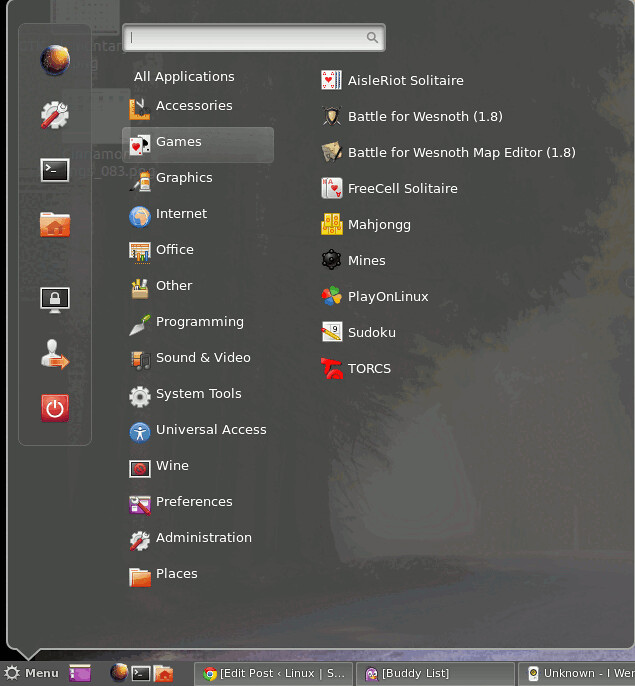
Cinnamon team released new version of Cinnamon with many bugs fixes, theme improvements, enhancements to the bottom panel, also include cinnamon setting manager. Latest Version is a maintenance release which adds polish and tackles important issues from the previous release.
cinnamon

What's new in 1.6.4 Version?
  • When the magnifier is enabled some categories of the menu do not appear correctly
  • Accessibility: Magnifier now displays context menus correctly
  • Windows management: When a window requires attention (typically, when you open a file with an editor that is located on another workspace), Cinnamon moves to that workspace by default rather than bringing the window to you. This behaviour is also configurable in Cinnamon Settings -> Windows.
  • Menu: Items from sub-categories are now displayed
  • Menu: Searches now apply to menu item ids (i.e. the name of the .desktop file)
  • Settings: Made keybindings page compatible with non-Ubuntu based distributions
  • Updated translations
Also Previous Release Fixes:
  • New "keyboard bindings" page in cinnamon settings
  • Fixed alignment in notification popups
  • Prevent non-gtk-systray-icons from disappearing on redisplay
  • Window-list applet: Fix regression to close-all and close-other
  • menu applet fix: get_key_focus was triggering a changed signal on the search text box, which was resetting categories (thinking a search was being performed).
  • Don’t hide Spotify from system tray
  • updated translations
  • altTab: Fix thumbnail size calculation for some dual-head setups
  • [Expo] Remove clip – fixes dual-display issue with clipped workspace ……display
  • Fixed conky/mintupload windows appearing in alt-tab
  • Use bottomMonitor to position bottom-aligned hot corner.
  • Alt-tab: Icons + Thumbnails as default choice
  • Enabled notifications and settings applets by default
  • Ignore the GNOME setting for handling the desktop

To Install Latest Cinnamon in Ubuntu 12.10/12.04/11.10 open Terminal (Press Ctrl+Alt+T) and copy the following commands in the Terminal:
  • sudo add-apt-repository ppa:gwendal-lebihan-dev/cinnamon-stable
  • sudo apt-get update
  • sudo apt-get install cinnamon
Source: Cinnamon

Howto: Upgrade To Ubuntu 13.04 Raring Ringtail From 12.04, 12,10 | Desktop & Server

Updated 05-04-2013: Ubuntu 13.04 Raring Ringtail Will Be Released Soon, If You Have Ubuntu 12,10, 12.04 Precise Pangolin Or Older Version Of Ubuntu Installed On Your System, And You Want To Upgrade To This New Release,  You Can Do It By Following These Instructions.
Important: The most important things when it comes to upgrading are:
  1. That your data is safe
  2. That you end up with a fully functional system
Your personal data is the most valuable thing in your computer. If anything happens and you break your operating system, it’s not a problem, it can be reinstalled. If you lose your data… that’s a different story.
To be safe:
  1. Make a full backup of your data on an external device (USB stick or CD/DVD).
  2. Download and burn the liveCD of the newer release, and check that your hardware is fully functional with it.

- Desktop Upgrade:


a- Update the system before to upgrade:
Before to upgrade, we need to update the system, press Ctrl+Alt+T, and enter the following command:
sudo apt-get update && sudo apt-get dist-upgrade
  • b- Upgrade:
To upgrade, open terminal and enter the following command:
sudo update-manager -d
Update Manager should open up and tell you: New distribution release ’13.04‘ is available ( See screenshot bellow).
upgrade-ubuntu13.04
Then click : Upgrade
upgrade-2A new screen will appear asking you if you want to start Upgrade:
upgrade-4
Press start upgrade.
Now don`t close your computer until the upgrade is finished.
upgrade5

- Server Upgrade:

To upgrade from Ubuntu 12.10 on a server system to Ubuntu 13.04:
1- install the update-manager-core package if it is not already installed:
sudo apt-get install update-manager-core
2- Edit /etc/update-manager/release-upgrades and set Prompt=normal;
3- Launch the upgrade tool with the command
sudo do-release-upgrade -d
and follow the on-screen instructions.
Important: This is a beta release. Do not install it on production machines. The final stable version will be released 26th of April 2013.
For questions please refer to our Q/A forum at : http://ask.unixmen