How do I manually check for updates?

At any time, you can check for updates.

  1. At the top of the Firefox window click the Firefox button, go over to the Help menu and select About FirefoxFor Windows XP: Go to the Help menu and select About Firefox.
  2. The About Firefox window will open and Firefox will begin checking for updates. If updates are available, they will begin downloading automatically. If Firefox is already up to date, just close the About Firefox window.
    Update Win1 Fx15
  3. When the updates are downloaded and ready to be installed, click Restart to Update. Firefox will be restarted and the updates will be installed.
    Update Win2 Fx15

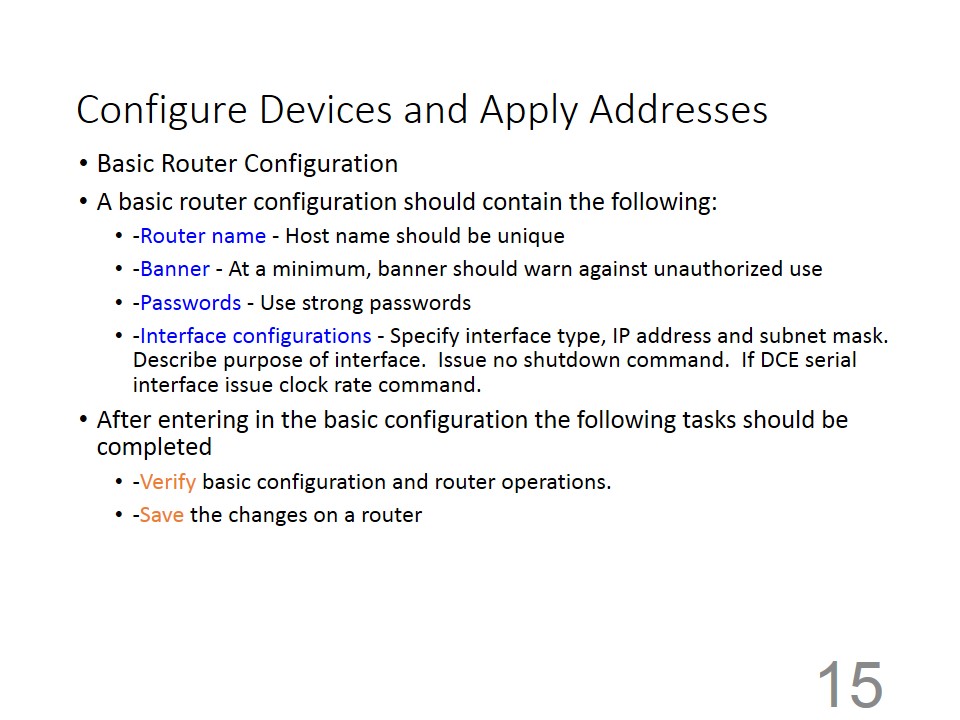
Introduction to Routing and Packet Forwarding


How to change background in twitter

To customize your own design:

    If you want to upload your own background image or customize the sidebar and color scheme of your page, follow the steps below.
    1. Sign in to your account.
    2. Go to your Settings and click on the Design tab.
    3. Scroll down to the Customize your own section.
    4. Click on Choose file to upload a background image. Images justify to the top left of the screen. You cannot stretch your image to fit. It will display as the size you uploaded (file must be smaller than 800k).
    5. Check the box to Tile background if you want your picture to repeat across the background.
    6. Choose whether your Background position will be left, center or right.
    7. If your image isn't very large, choose the background color that will show behind the image.
    8. Choose a color for links.
    9. Choose a black or white transparent overlay.
    10. Click Save changes.
    Note: Background images must be in PNG, GIF, or JPG format, smaller than 800k. If your image's file size is too large, use an image editing program or web app to shrink the image.Animated GIFs are not supported as background images. 

    To customize your design with a premade theme:

      1. Sign in to your account.
      2. Go to your Settings and click on the Design tab. 
      3. You will see a Pick a premade theme menu, select a premade theme by clicking on the design you would like to use.
      4. Click Save changes at the bottom of the page when you're done. It's as simple as that!

      How to change mac address in windows xp-7-8

      Open Device Manger. Right Click on My Computer. Click on Manage. Then Click on Device Manager on left hand side tab. Or Goto Run and type "devmgmt.msc" without quotes. The Device Manager will be opened

      1/ Now goto the "Netwok Adapters" menu. It will list all the network adapters currently present in your computer. Right Click any adapter of which you want to spoof the IP and gotoproperties.

      How to Spoof MAC Address in Windows


      2/ Now goto "Advanced Tab" at the top and Find the Property "Locally Administrated Address" or "Network Address" in the List Given.

      How to Spoof MAC Address in Windows


      3/ It will have two options "Value" and "Not Present". By default Not Present will be selected, which means windows is using your default mac address.

      4/To change your Mac address, Type any 12 digit Hexadecimal(0-9,A-F) Mac Address and click Ok.

      How to Spoof MAC Address in Windows


      5/  Window will be refreshed several time and your MAC address will be spoofed successfully.

      6/  You can verify that Whether your mac address has been spoofed or not by typing the following command at command prompt: "ipconfig /all".

      How to Spoof MAC Address in Windows


      Now goto the Adapter of which you have spoofed the Mac Address. There are several options like"Ethernet Adapter Local Area Connection", "Wireless LAN Adapter Wireless Network Connection" or "Bluetooth Connection".

      Now Look for "Physical Address" and you will see the Change.

      7/  If you want to Restore your Original Mac Address, Then Follow all the Steps Above and select "Not Present" in Last option.

      How to install a Windows 7 language pack

      To download and install a Windows 7 language pack, follow these steps:

      1. Start Microsoft Update. To do this, click Start
        the Start button
        , type Windows Update in the Search programs and files box, and then click Windows Update in the Programs list.
      2. Click the optional update links for the language packs.

        Note If the optional update links cannot be found, click Check online for updates from Microsoft Update to search the optional updates.
      3. Under the Windows 7 Language Packs category, select the desired language pack.

        Note If you install many additional language packs, the disk space and system performance are affected. In particular, disk space and system performance are affected during servicing operations, such as Service Pack installations. Therefore, we recommend that you only add a language pack to your computer if you will use the language pack.
      4. Click OK, and then click Install updates to start the download and installation process.

      How to change the interface of Windows 7 after a language pack is installed

      When you install a language pack, you can change the interface language of Windows 7 to the language that you select. 

      Language packs also let multiple users who share a computer select distinct display languages. For example, one user can select to see the dialog boxes, menus, and other text in Japanese, whereas another user can select to see the same content in French.

      To change the display language, follow these steps:
      1. Click Start, and then type Change display language in the Start Search box.
      2. Click Change display language.
      3. In the drop-down list that appears, select the language that you want, and then click OK.

      How to uninstall a Windows 7 language pack

      To uninstall a language pack, follow these steps:
      1. Click Start, and then type Uninstall display language in the Start Search box.
      2. Click Install or uninstall display languages.
      3. Click Uninstall display languages.
      4. Select the language or the languages that you want to uninstall, and then click Next.
      5. Follow the rest of the steps to uninstall this language or these languages.
      After you install the desired language packs, you can hide unwanted language packs in Windows Update. To hide unwanted language packs in Windows Update, follow these steps:
      1. Click the Windows 7 Language Packs category in the Select the updates you want to install page to highlight all the language packs.
      2. Right-click the highlighted updates, and then select Hide update.